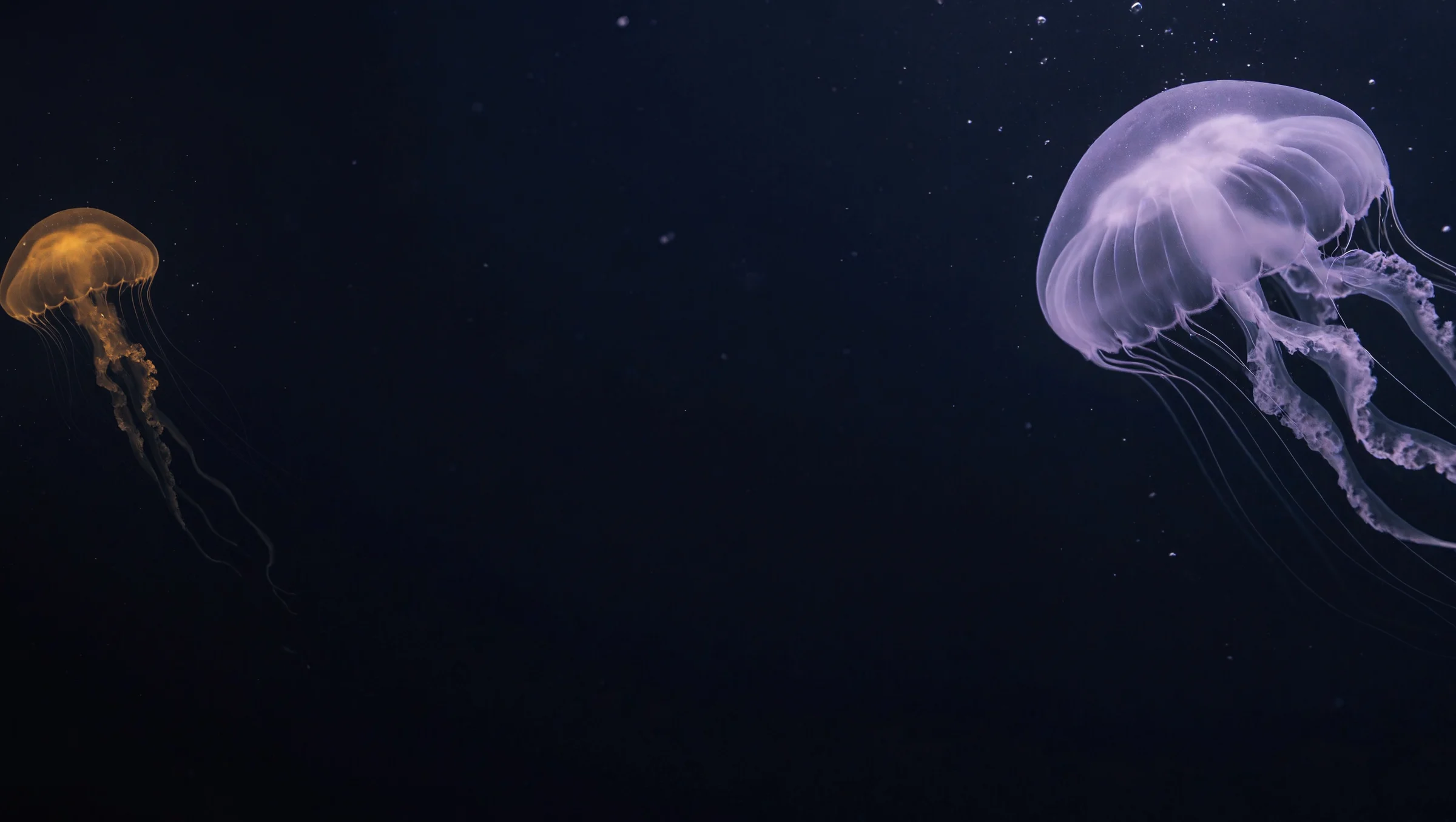
Natural detail
Shape light, reflections, and material texture with output options up to 4K.
Create detailed images, direct the composition, and bring up to 16 references into a single creative workflow.
Shape light, reflections, and material texture with output options up to 4K.
Give subjects, positions, and relationships a clear place in your prompt.
Bring product, setting, and style references into one image.
Describe what should change and what you want to preserve.
Key features
Explore product photography, carefully arranged scenes, and reference-led image editing.
Natural detail · up to 4K
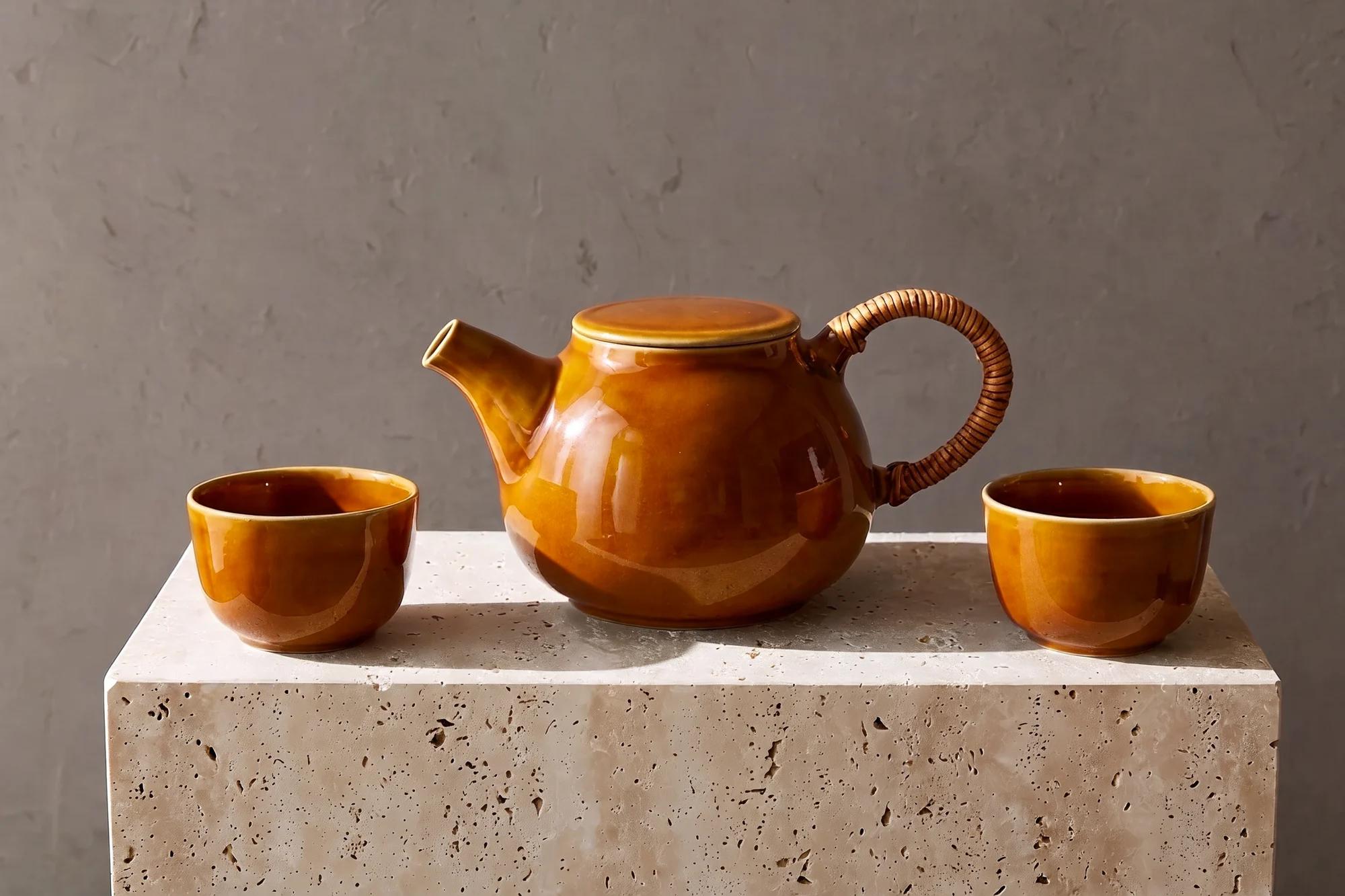
Build a product image around the way its surfaces catch the light. H3 Image supports detailed image generation, with 1K, 2K, and 4K options in the Nanobana workflow.
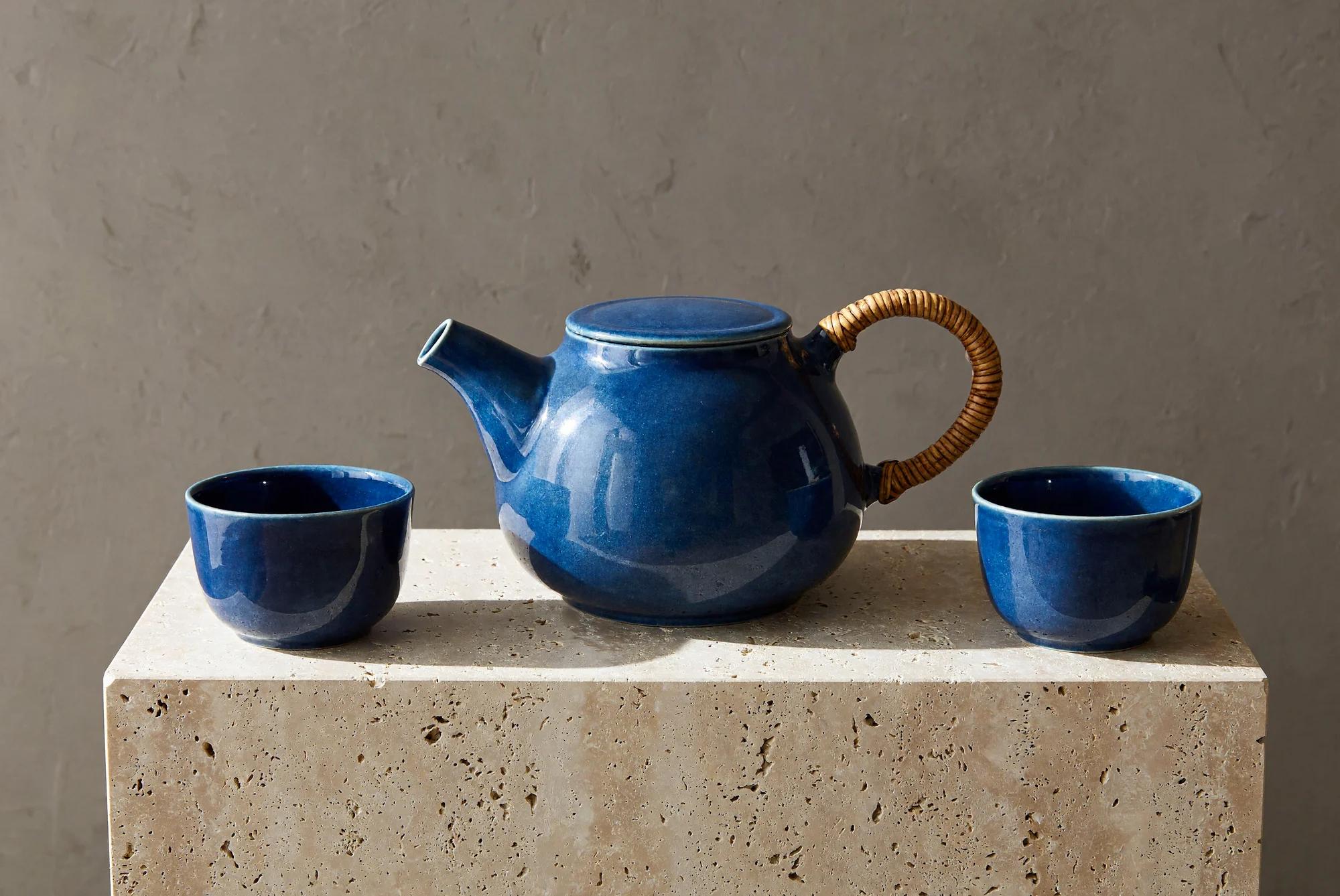
Prompt adherence
Specify the number of subjects, their positions, and the space between them. Give the model a scene to arrange, from a museum display to an editorial still life.
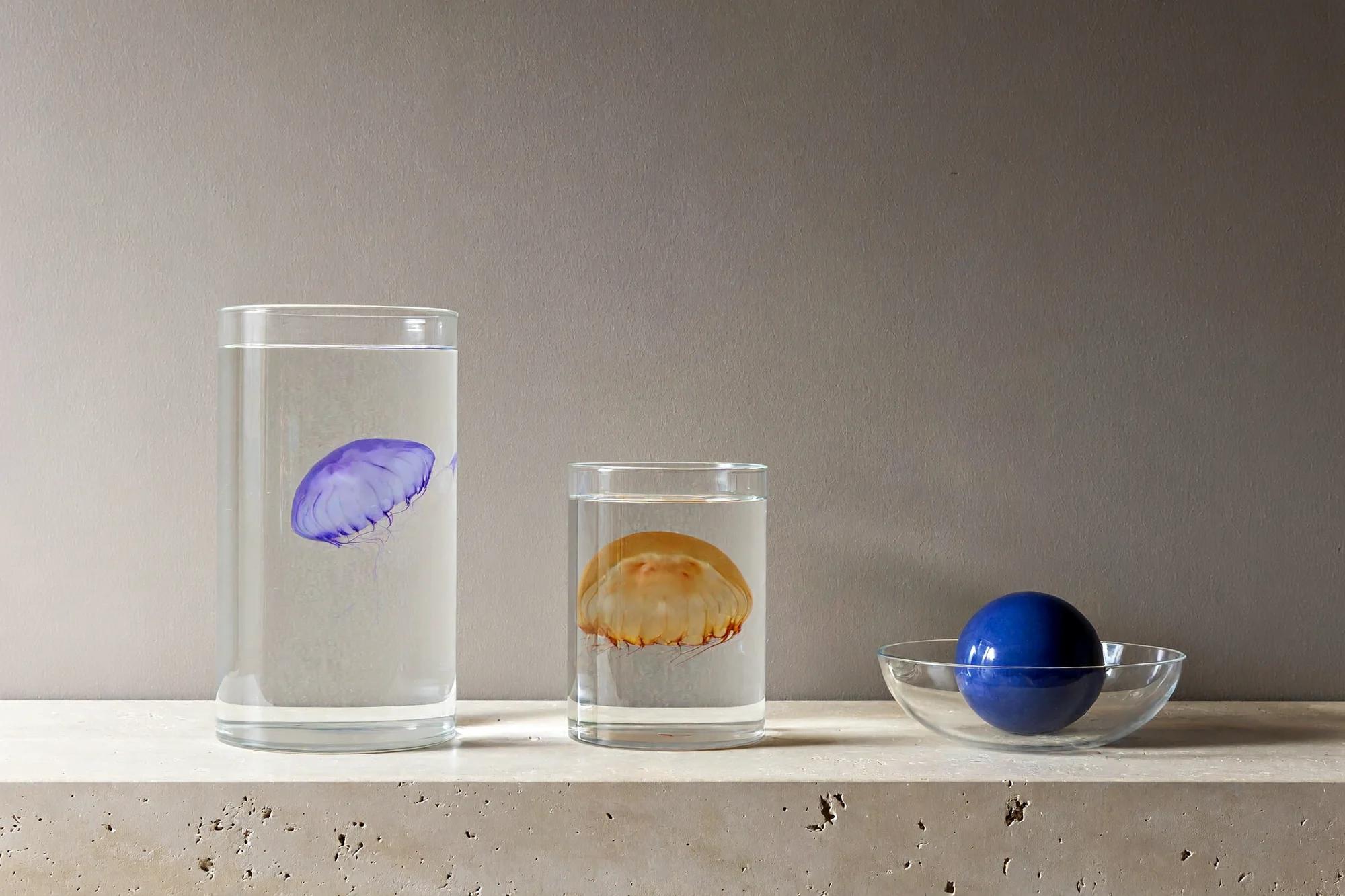
Multiple image references
Combine a product reference with a setting or visual direction. H3 Image accepts up to 16 reference images, so you can explain which details each image should contribute.
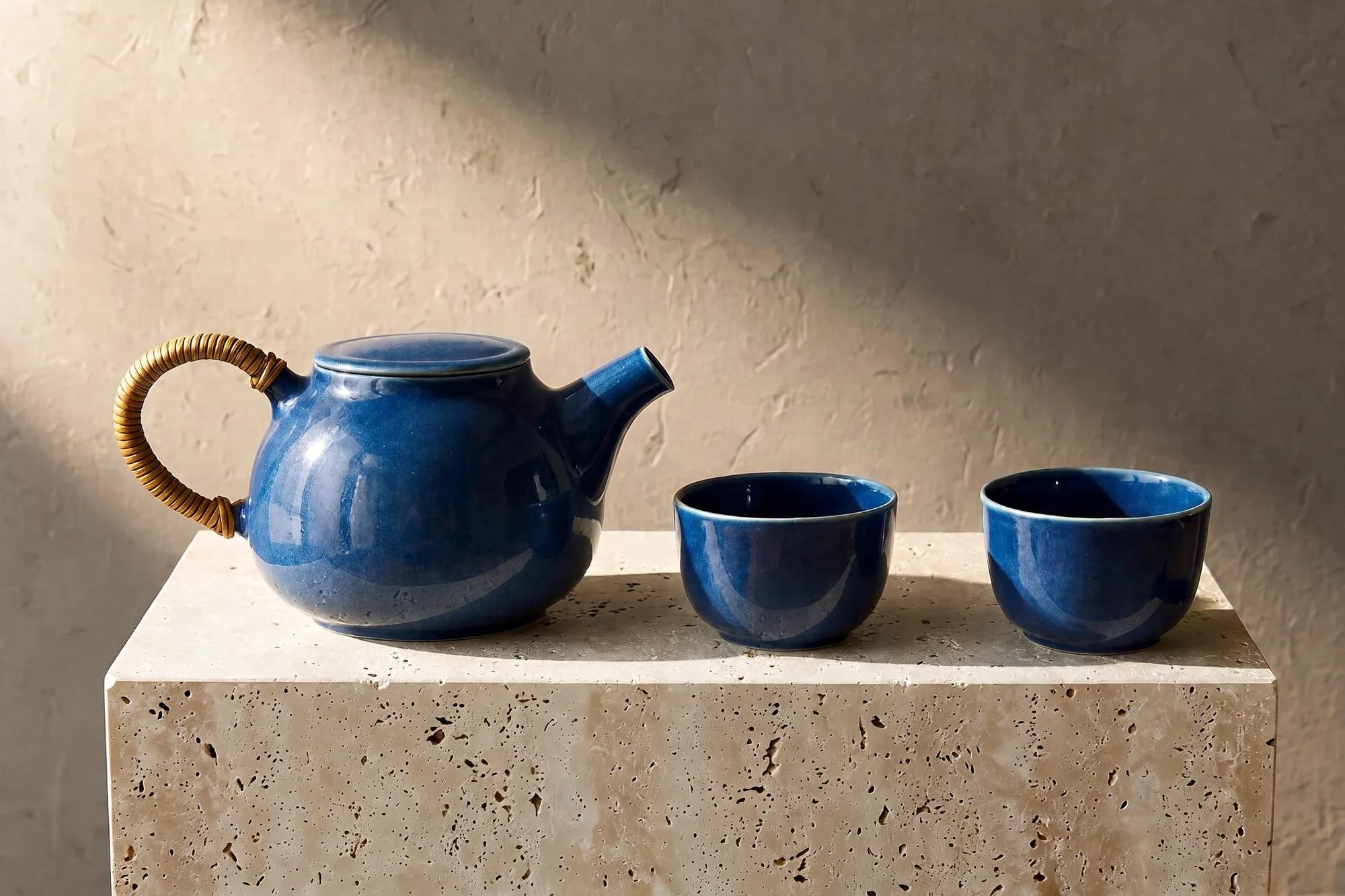
Image editing
Use an image as your starting point and describe one focused change. Name the surrounding shapes, materials, and lighting you want to keep, then compare the result with your reference.
Explore model-specific demonstrations from SECourses and CongZ AI. These videos cover local ComfyUI workflows; Nanobana provides its own web workspace.
SECourses
CongZ AI
How it works
Use the same image workspace as the Nanobana homepage.
Write the subject, arrangement, materials, and lighting. Select an aspect ratio and output size.
Upload images to edit or combine. Tell the model what to take from each reference and what to preserve.
Sign in, review the displayed credit estimate, and generate. Inspect and download the result or continue working in Canvas.
MiniMax H3 Image is an image generation and editing model developed by MiniMax. It supports text-to-image, reference-based generation, and image editing. It is a separate image model from the MiniMax H3 video option.
Nanobana is an independent creative platform that provides a web workflow for third-party models. MiniMax develops H3 Image; Nanobana does not develop or own it, and this page does not imply a partnership or endorsement.
You do not need to enter a MiniMax API key in this generator. Sign in to Nanobana and use its supported generation workflow and account credits.
Nanobana supports text-to-image and image-to-image with MiniMax H3 Image. Start from a prompt or add reference images for an edit. This image workflow does not generate video or offer mask-based editing.
You can add up to 16 JPEG, PNG, or WebP reference images, each up to 20 MB in this workflow. Explain the role of each reference, especially when combining subjects and settings.
The generator offers 1K, 2K, and 4K output levels, automatic or fixed aspect ratios, and PNG or JPEG output. Pixel dimensions depend on the selected aspect ratio and output level. This workflow does not offer transparent backgrounds.
The estimate depends on output size, image quantity, and the number of reference images. Each reference contributes to the per-image cost. Check the current estimate in the generator before submitting.
Reference images guide generation, but they do not guarantee an exact match. Describe the details to keep and the changes to make. Review text, object counts, identity, geometry, and fine details before using the output.
Describe a new scene or bring a reference into the H3 Image workspace.
Create with MiniMax H3 Image