01
Upload the source first
Choose the photo you want to edit and add optional supporting references afterward.
A focused object and material change while the surrounding scene remains stable.
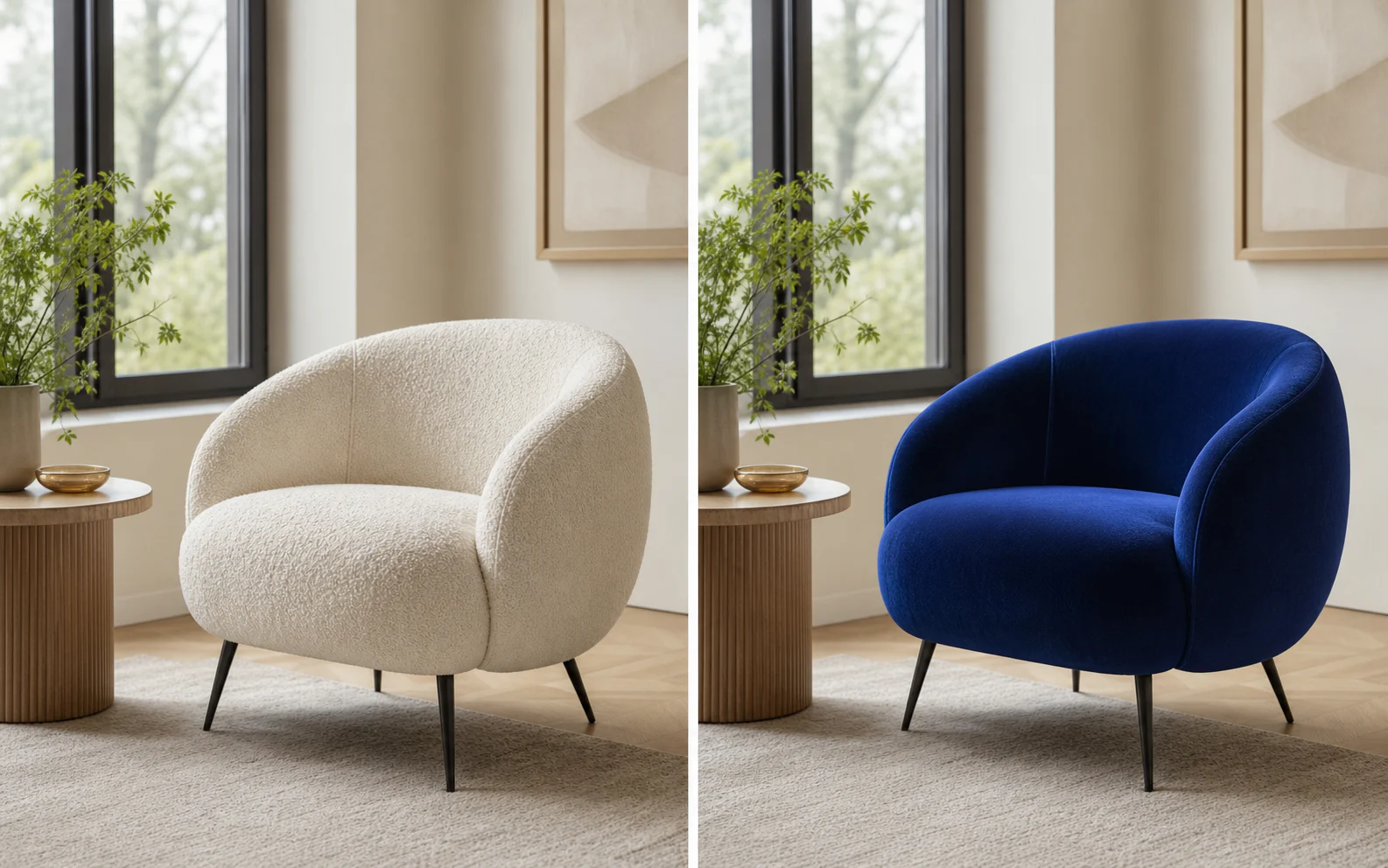
One editor for precise visual changes
A dedicated instruction field and preservation presets make the editing intent explicit before generation begins.
01
Describe an object replacement, color update, material change, cleanup, or composition adjustment in everyday language.

02
Choose whether subject identity or scene structure deserves stricter protection, then reinforce it in the instruction.

03
Attach supporting images for a material, object, palette, or styling direction without replacing the primary source.

Three-step workflow
Treat the first upload as the source, then describe one clear visual change.
Choose the photo you want to edit and add optional supporting references afterward.
Name what should change, what should remain fixed, and which reference to use.
Inspect both the edited area and the untouched subject, scene, shadows, and crop.
Use a specialized workflow when the change is specifically about light, wardrobe, or camera position.

Repair flat, harsh, or mismatched light with direct controls for direction, softness, and intensity—without rebuilding the photograph.
Fix the lighting
Upload a person first, then add garment references to build a new look without losing the model, pose, or original scene.
Change an outfit
Move the virtual camera around one image while protecting the subject's design, materials, scene, and visual continuity.
Change the cameraYou can request object, material, color, background, lighting, styling, cleanup, and composition changes.
State the target change first, then name the details that must remain unchanged. Keep unrelated requests out of the same edit.
They can communicate a product, material, palette, style, or subject that is difficult to describe precisely in words.
The tool accepts up to fourteen images: one primary source and up to thirteen optional references.
Generative edits rebuild pixels rather than locking them mathematically. Use a protection preset and explicitly name critical details.
Upload the source, describe one change, protect what matters, and review the result in the same workspace.
Edit a photo