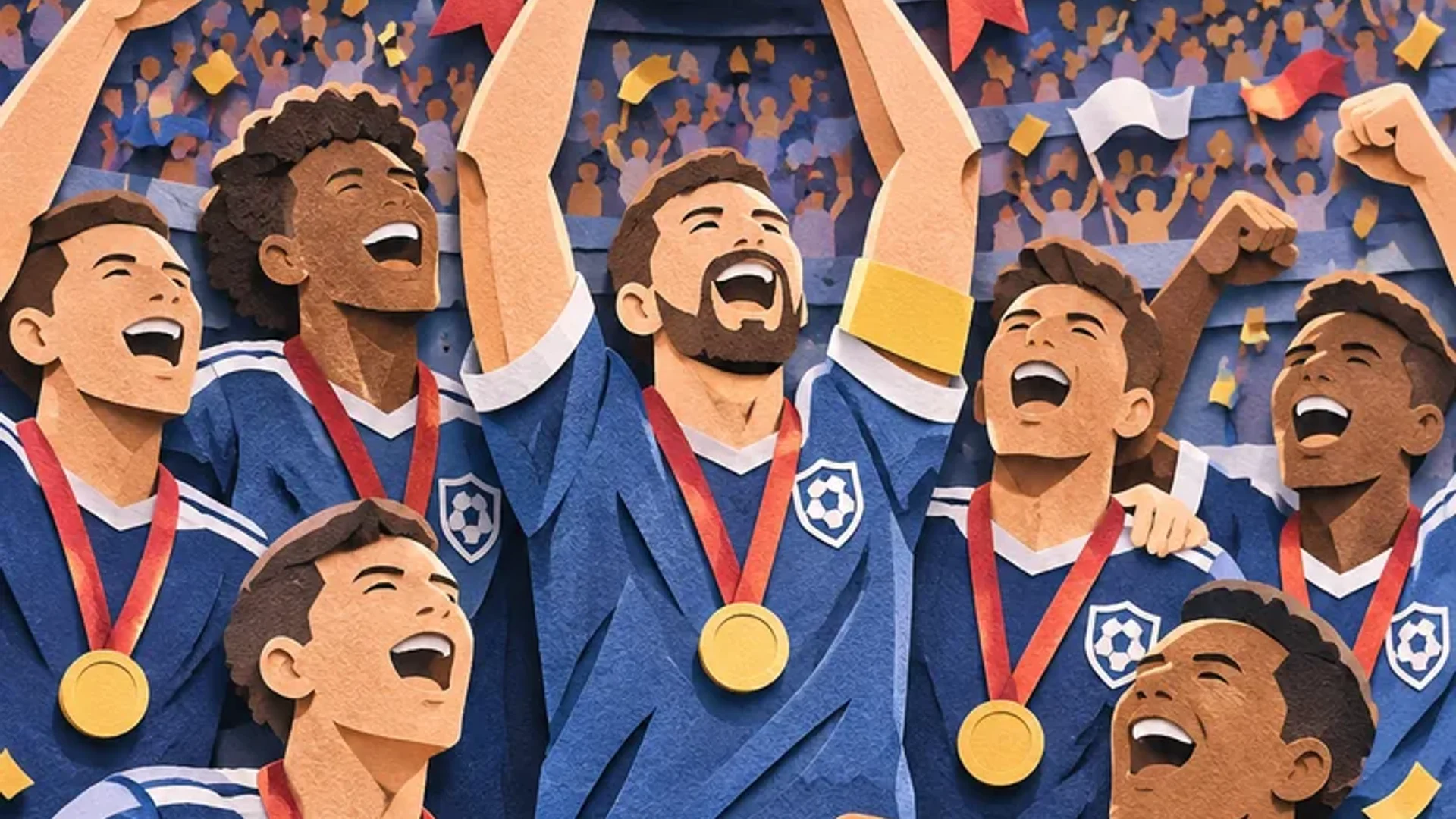
Animated GIF output
Describe a short movement and turn it into an image animation.
Create images and animated GIFs with GPT Image 2.6 Flare and Sunburst. Choose your output format, resolution, and reference images in Nanobana.
Describe a short movement and turn it into an image animation.
Choose a format for illustrations, photos, or compact web images.
Choose the resolution and aspect ratio for your composition.
Use up to 16 images to guide a new image or a focused edit.
Model capabilities
Turn a creative brief into a short animation, a brand illustration, a detailed composition, or a focused image edit.
Feature 01 · Animated GIF output
Describe the subject, action, and desired loop to generate an animated GIF. Create expressive character moments, moving illustrations, and short visual sequences with control over the animation’s timing.
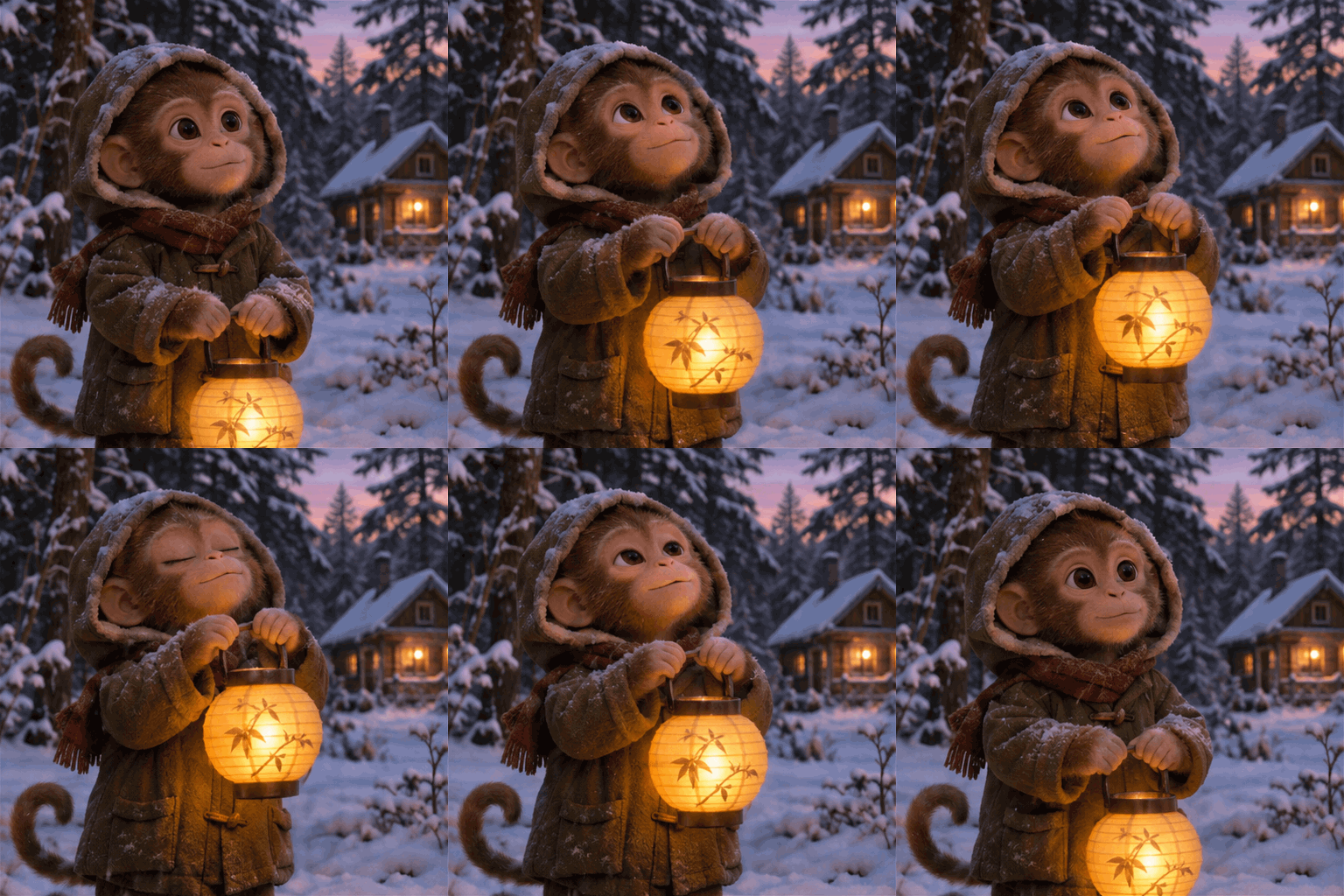
Feature 02 · Image output formats
Develop icons, illustrations, and visual identity concepts, then save the result as PNG, JPG, or WebP. At 1K, you can also choose an opaque or transparent background.

Feature 03 · Resolution and aspect ratio
Choose 1K, 2K, or 4K output and an aspect ratio that suits the image’s destination. Describe the layout, exact text, and relationships between objects in your prompt.
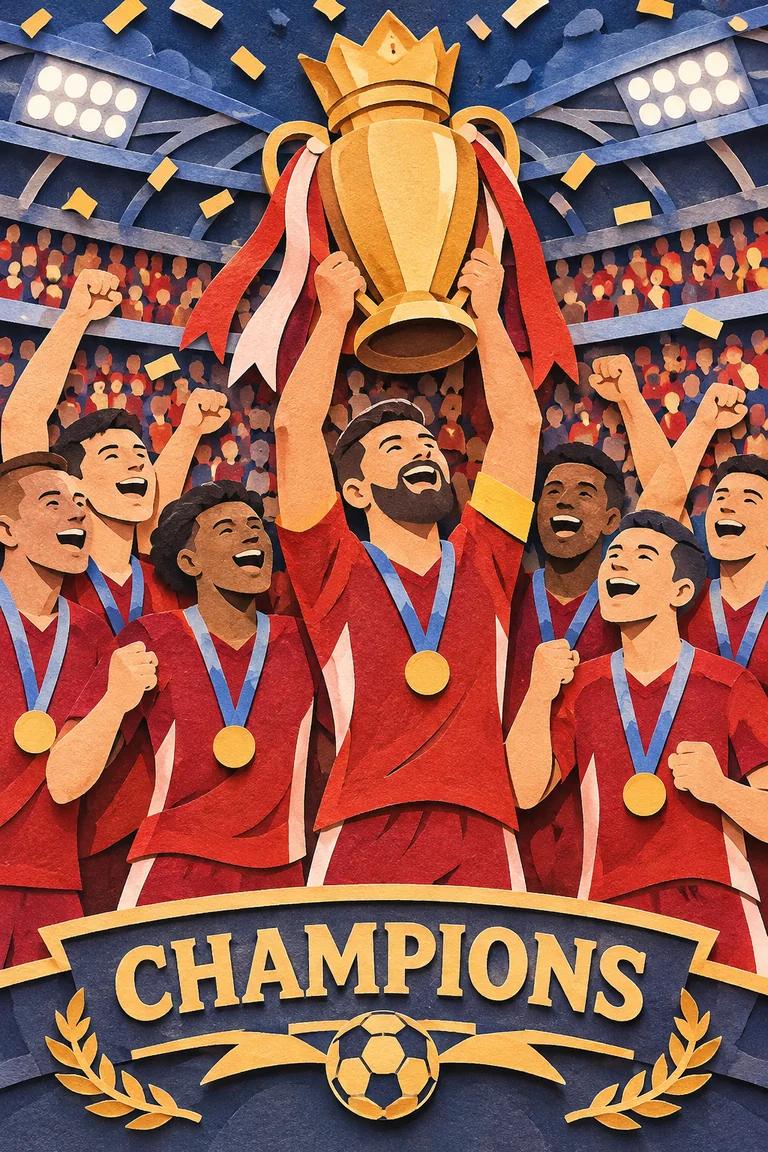

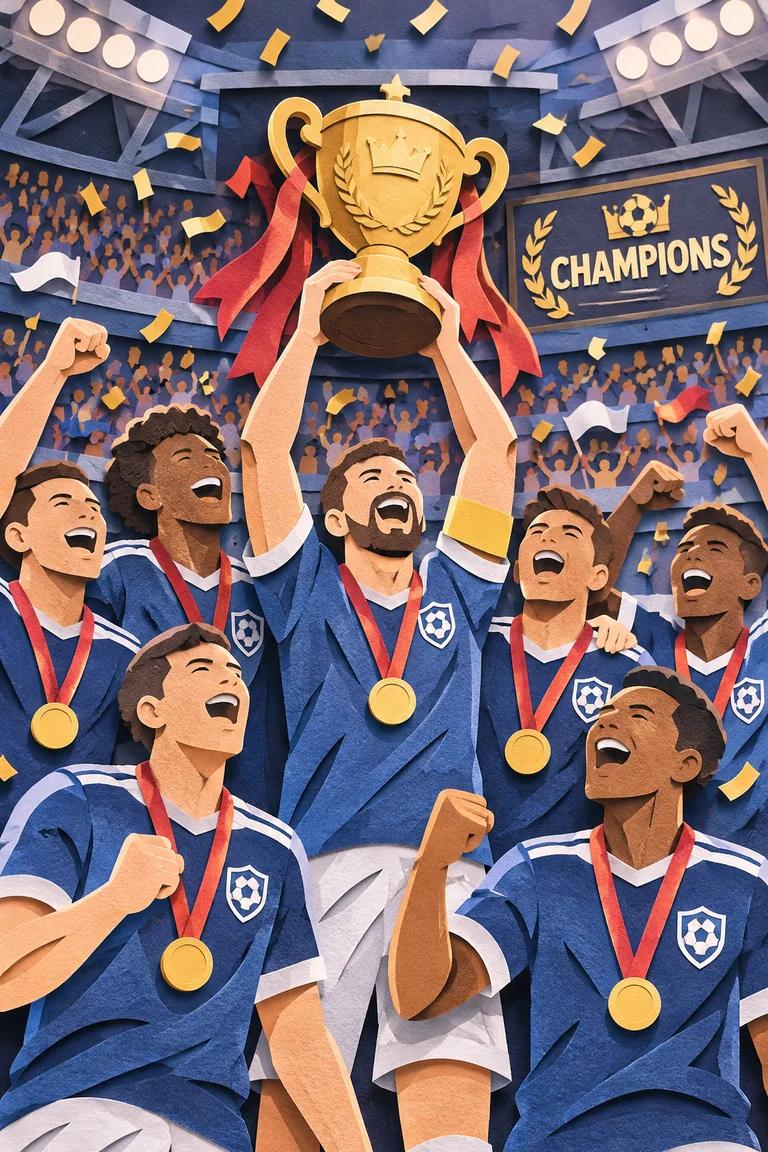
Feature 04 · Reference image editing
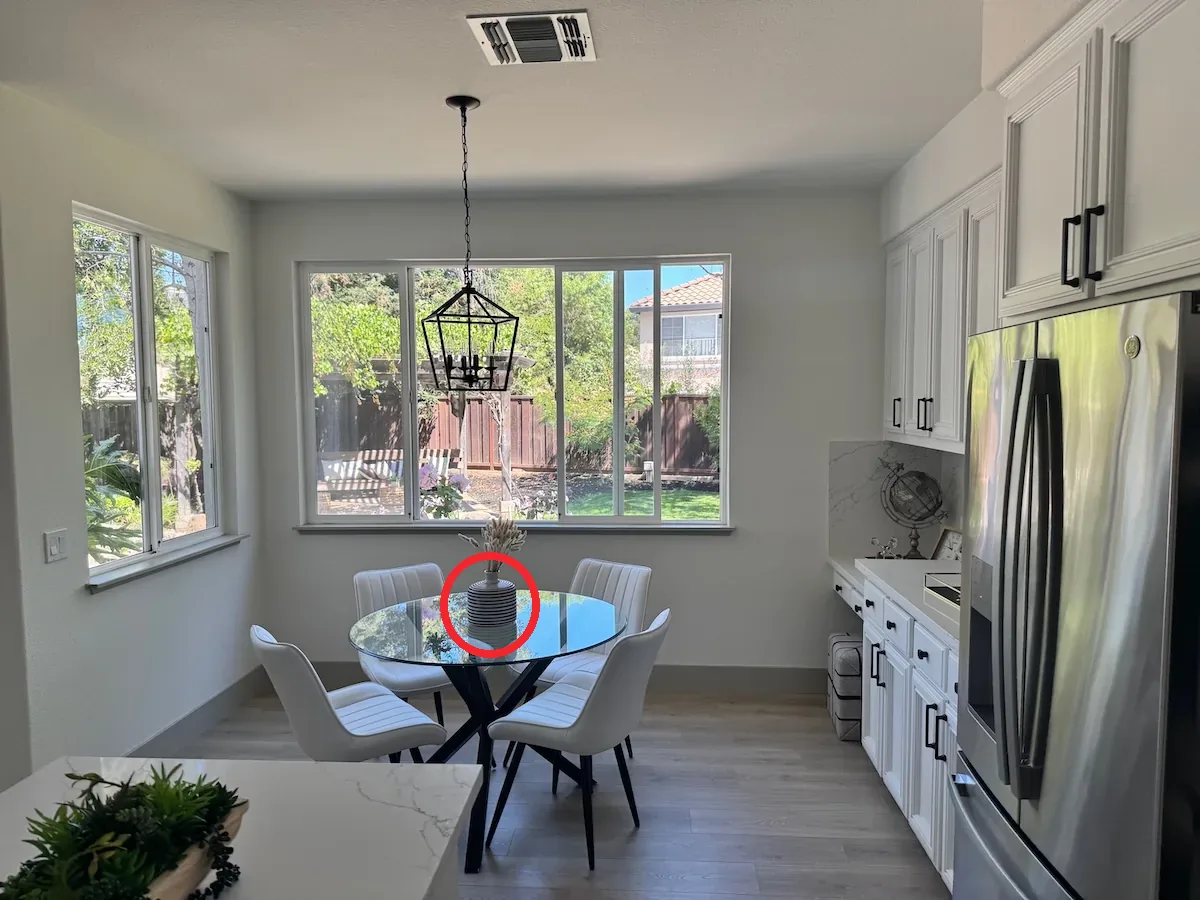
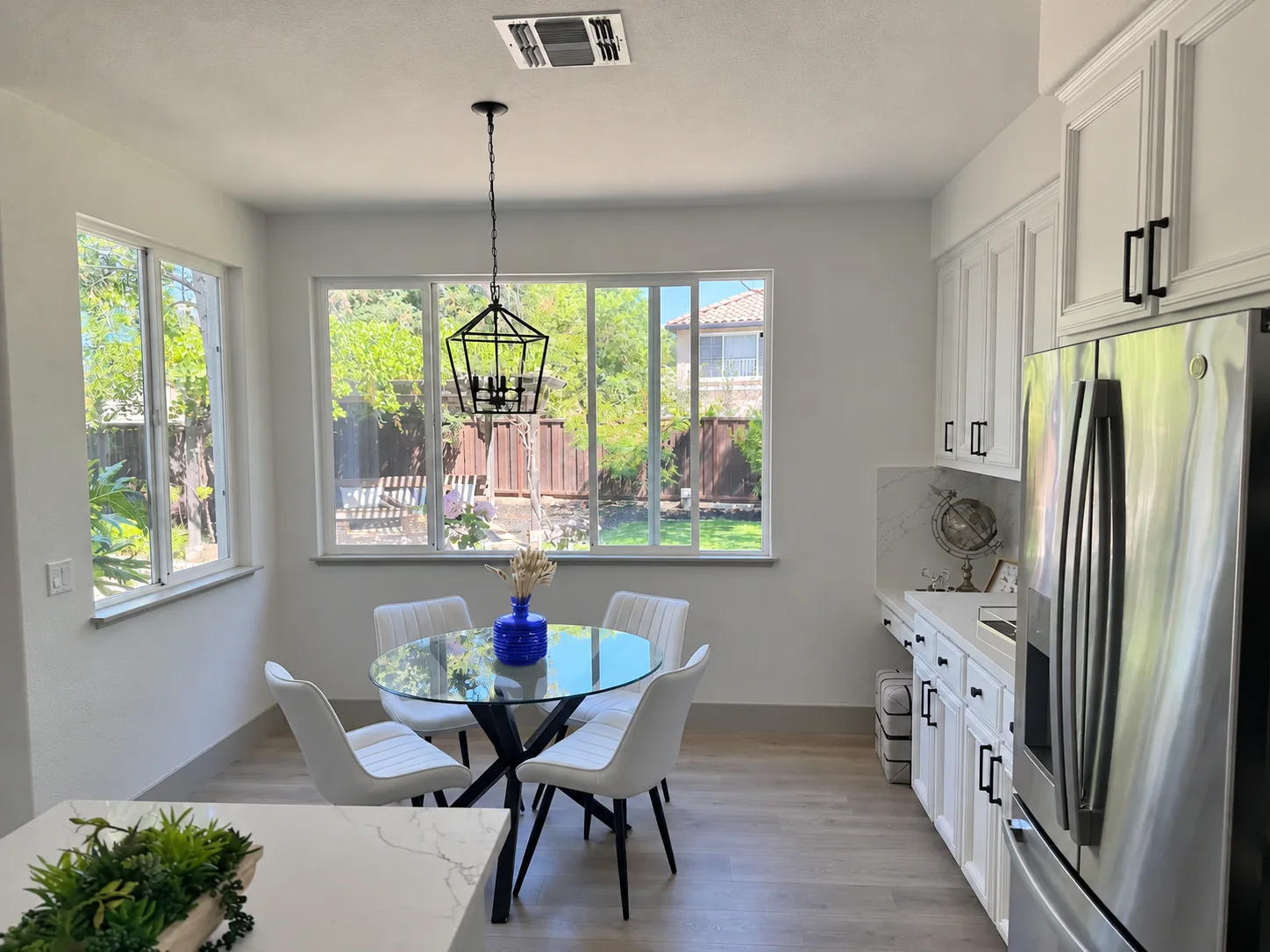
Upload reference images and describe the requested change. You can use an annotated reference to identify an object, adjust a detail, and explain which parts of the scene to preserve.
Start creating
Choose Flare or Sunburst, describe your image, and generate in Nanobana.
Select Flare or Sunburst, then choose PNG, JPG, WebP, or a text-to-image animated GIF.
Describe the subject, layout, exact text, reference material, and final format your project needs.
Sign in, generate your image, and review the result. Credits are settled from actual usage after completion.
GPT Image 2.6 is an OpenAI image generation and editing model family with Flare and Sunburst variants. Nanobana supports text and reference image inputs, PNG, JPG, WebP, and text-to-image animated GIF output.
Flare is suited to fast iteration and interactive image generation and editing. Sunburst is oriented toward detailed visual work. Both support the four capabilities shown on this page.
Nanobana is an independent creative platform. You can use GPT Image 2.6 Flare and Sunburst here after signing in. Generations are charged from actual usage after completion.
Choose 1K, 2K, or 4K and a supported aspect ratio. Background controls are available at 1K, with automatic, opaque, and transparent options.
Nanobana supports PNG, JPG, WebP, and animated GIF output. GIF is available for text-to-image and offers frame-count and frame-duration controls. Reference image edits support PNG, JPG, and WebP.
Describe the intended use, subject, composition, lighting, and style. Put exact image text in quotation marks and assign each reference image a clear role. For edits, focus on one main change at a time and specify the details to preserve.
Use a clear, approved image as the subject reference throughout your edits. Specify the identifying features to preserve, such as a person’s appearance or a product’s silhouette, proportions, materials, and label. Define the change for the current edit, then inspect the subject details before continuing.
Choose Flare or Sunburst and turn your creative brief into an image or animated GIF.
Try GPT Image 2.6