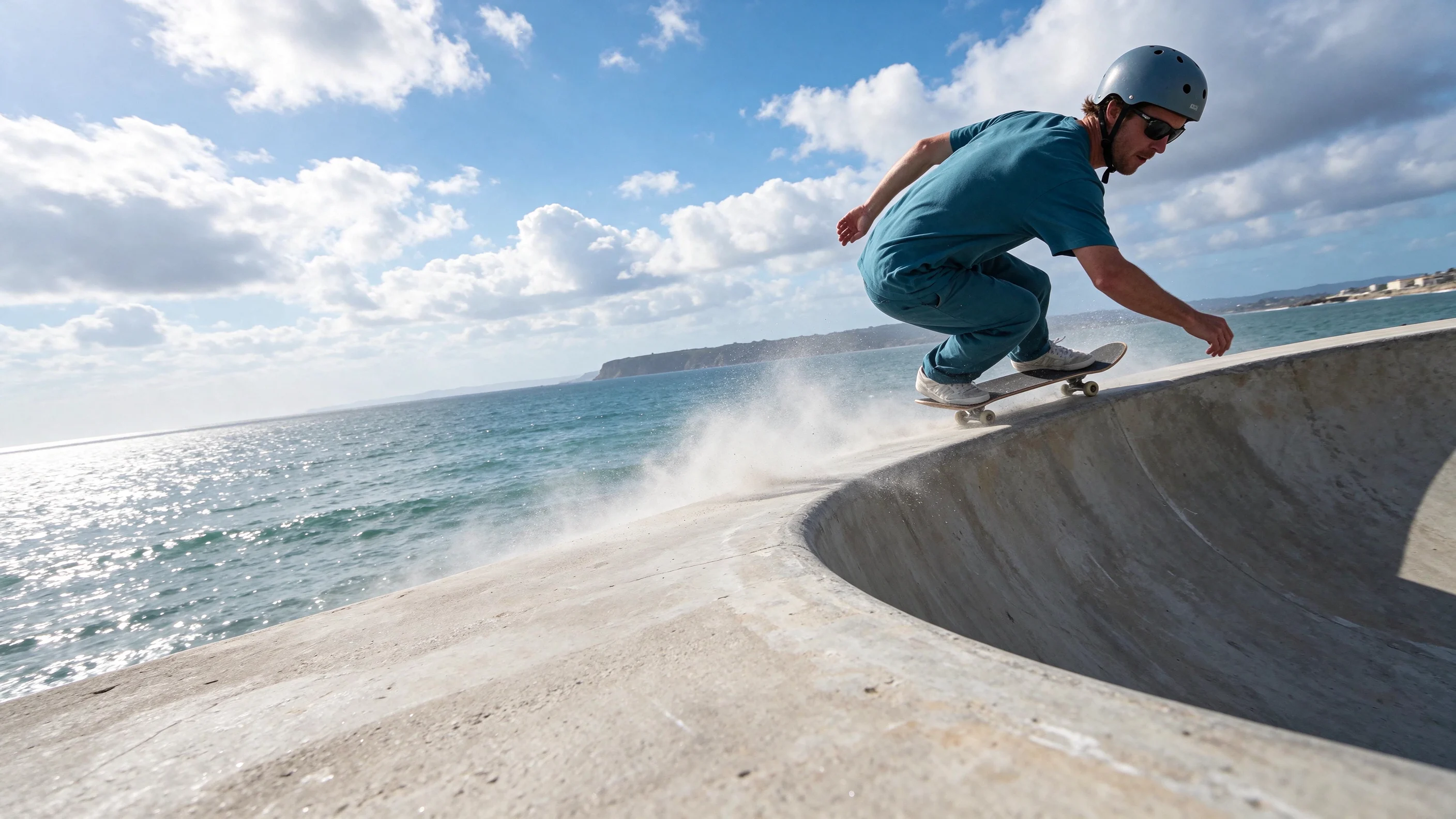
Focused image editing
Change a detail while keeping the scene and subject in view.
Create lifelike scenes, compose readable text, and refine the details of your reference images with Seedream 5.5.
Change a detail while keeping the scene and subject in view.
Explore natural textures, reflections, and considered lighting.
Give headlines and supporting copy a clear place in the image.
Combine references for subjects, settings, and visual direction.
Image generation and editing
Work across interior photography, food imagery, illustrated posters, and reference-led compositions.
Focused editing
Use a chosen image as the next reference and describe the detail to change. Explore a new color or material while keeping the framing, furniture, and surrounding details consistent.


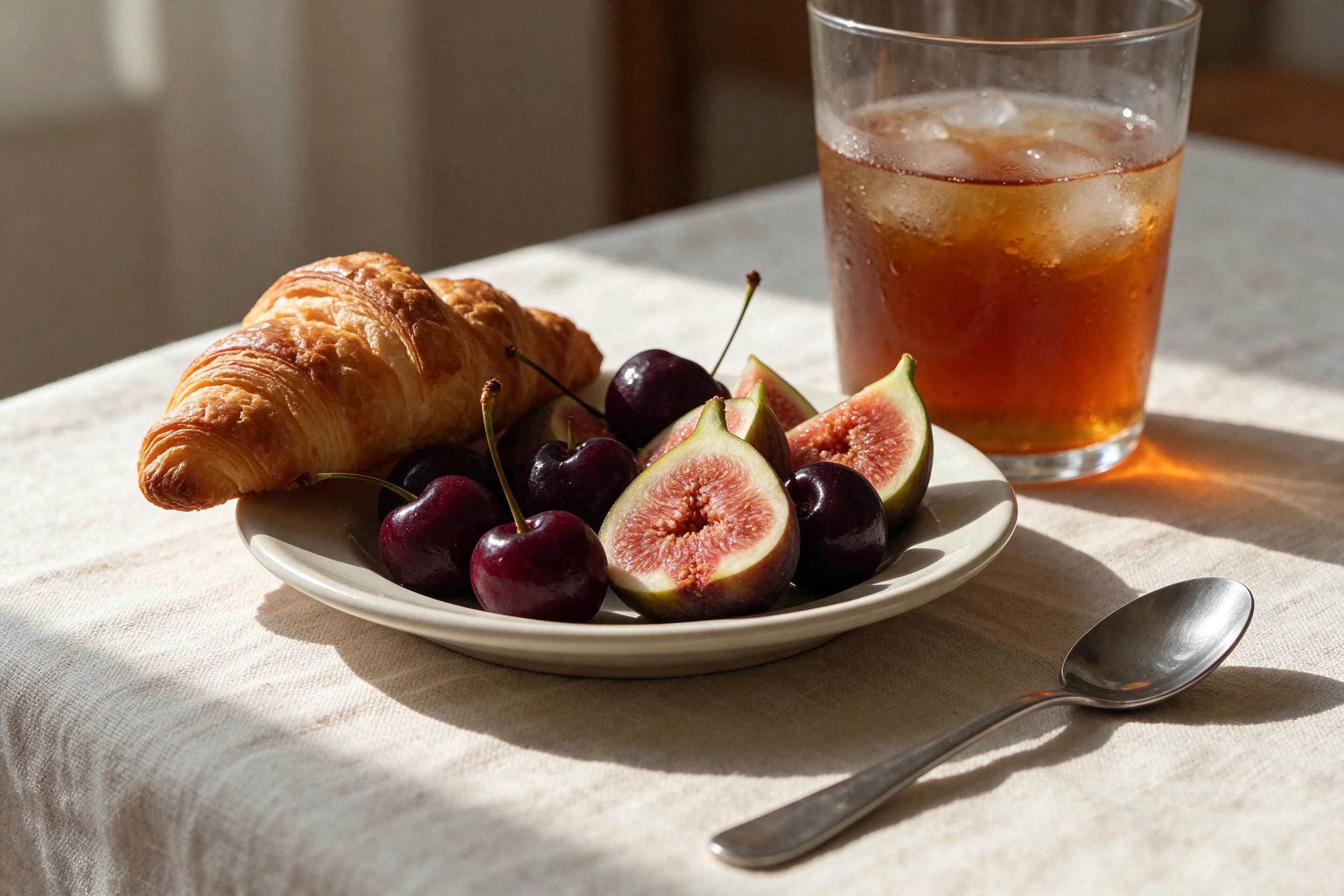
Natural texture and light
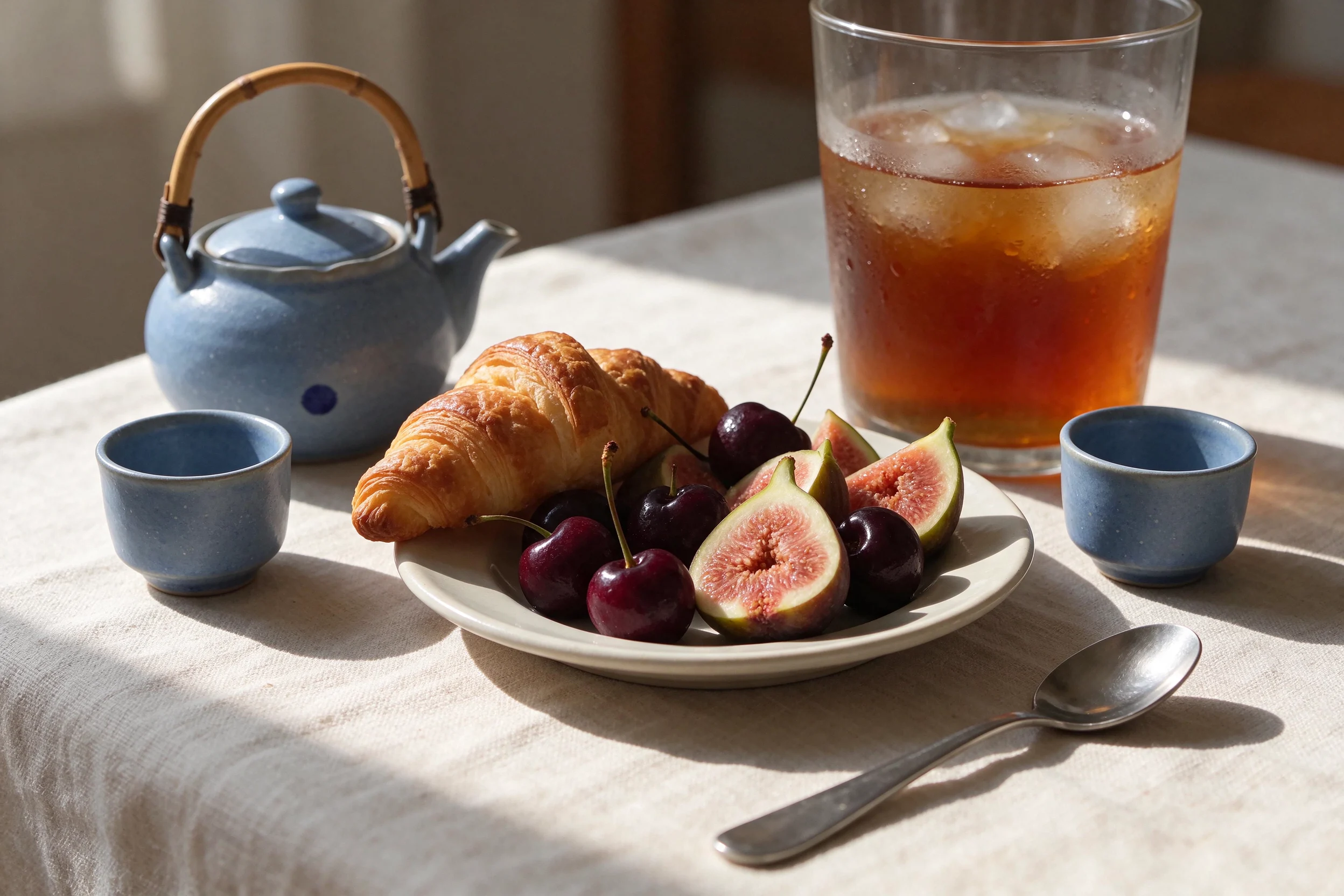
Shape a scene around the behavior of its materials. Describe the fruit skin, layered pastry, condensation, and light through glass so each surface has its own character.
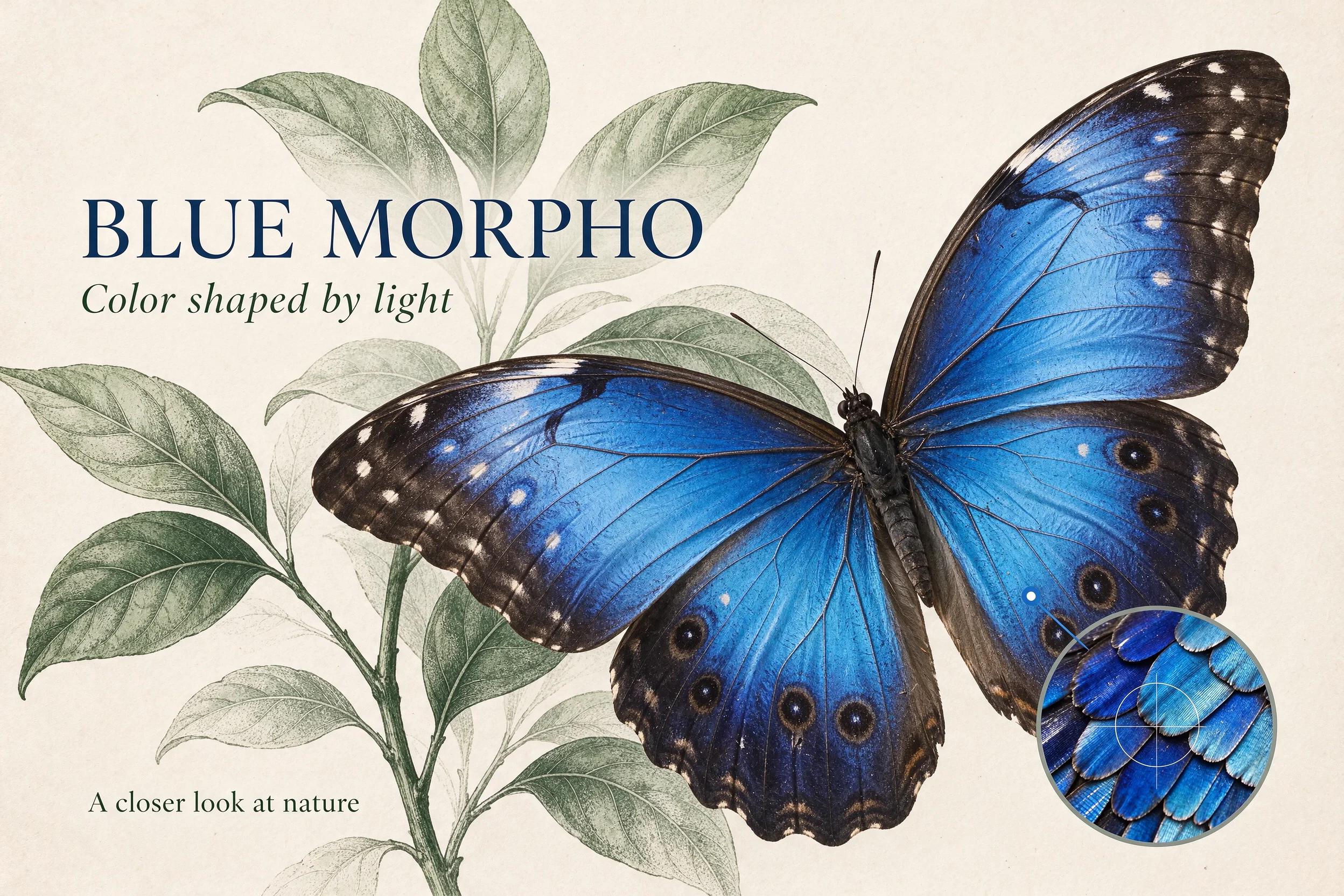
Text and layout
Set exact wording, hierarchy, and placement in your prompt. Develop an illustrated poster with a clear headline and supporting copy, then inspect the lettering and spacing before using it.
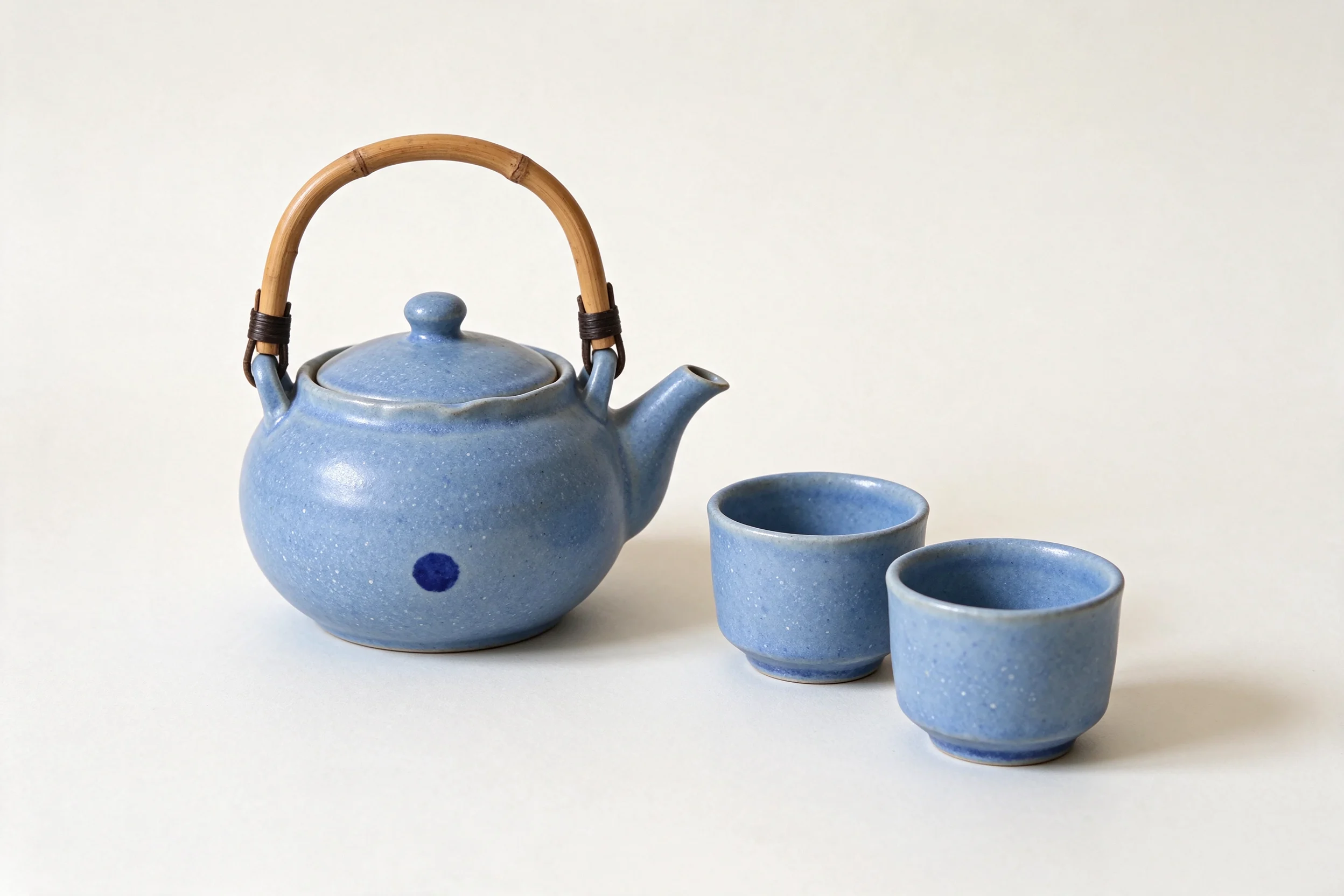
Multiple image references
Give each reference a role. Use one image for a recognizable object and another for the setting, then describe how the two should meet through scale, perspective, and light.
Explore Seedream 5.5 demonstrations and editing workflows from ElevenLabs and Magnific.
ElevenLabs
Magnific
How it works
Start with a brief, review the output, and keep a clear reference for each edit.
Write the subject, composition, materials, and lighting. Put any short image text in quotation marks.
Upload images when editing or combining subjects. Describe what each reference should contribute.
Inspect and download your result. Use a chosen image as a reference when making the next focused change.
Seedream 5.5 is an image generation and editing model developed by ByteDance Seed. Its main improvements focus on sustained editing, natural image detail, and text rendering.
Nanobana is an independent creative platform that provides a web workflow for Seedream 5.5. ByteDance Seed develops the model, and Nanobana provides the generation and editing interface.
Use your Nanobana account and credits to generate here. The connection to the model provider is handled by Nanobana.
You can generate an image from text or upload reference images to guide a new composition or an edit. Seedream 5.5 is selected in the generator on this page.
Use up to 10 JPEG, PNG, or WebP images, each up to 10 MB. Describe which subject, setting, or visual detail each reference should provide.
The full generator supports 1K, 1.5K, and 2K output in PNG or JPG. Choose an available aspect ratio for your composition. Image editing also supports automatic aspect-ratio selection.
Credits depend on the output size, number of generated images, and number of input references. Check the estimate shown in the generator before submitting, using Nanobana's current model credit rules.
Describe one main change and list the details to preserve. Reuse a clear chosen image for the next edit, then check composition, subject identity, edges, shadows, and visible text. Seedream 5.5 prompts support 5–5000 characters.
Bring a clear brief and your references, then refine the details that matter.
Try Seedream 5.5